Separate the jobs before comparing tools
The phrase covers several jobs that look alike but are not:
- Placing a window: moving it to a half, a quarter, or a corner of the display.
- Switching: reaching another window, app, or desktop without hunting with the pointer.
- Seeing everything: checking the open set before deciding what to move or close.
- Keeping a layout: restoring the same arrangement after a restart, a display change, or a docking cycle.
macOS answers the first three out of the box. The fourth is where the built-in toolset stops and third-party software begins. That boundary is the real fork in the road, and it is missing from most discussions of window management on a Mac.
Direction one: built-in macOS tools
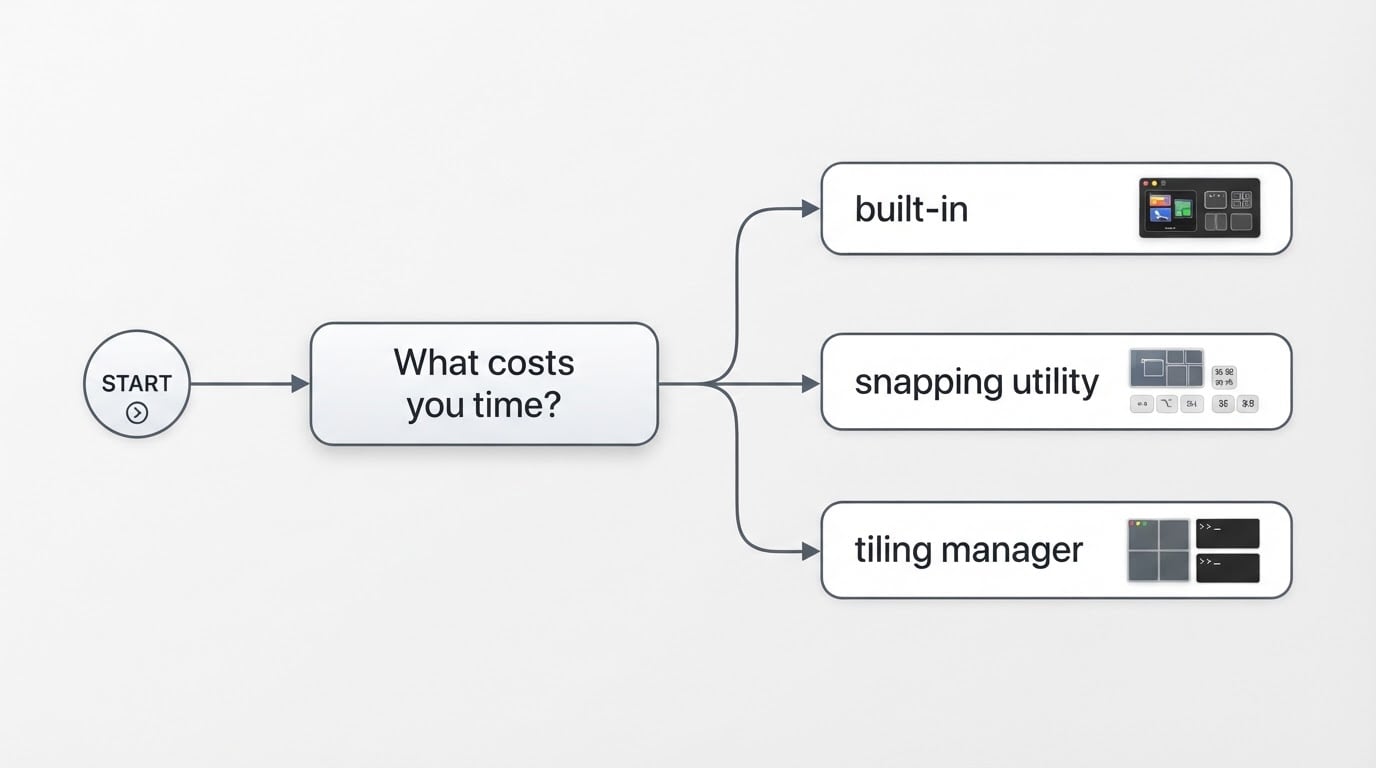
Drag a window to a screen edge and a recent macOS release tiles it into a half or a corner. Full screen gives one app the whole display. Split View puts two apps side by side inside a full-screen space. Mission Control collects every open window on the current desktop into one overview. Spaces creates separate desktops, so a focused set and a browsing set never mix. Stage Manager keeps recent windows in a strip along the side and brings the active one forward.

Everything is already installed. Nothing needs configuration. The behavior is the same on every Mac you sign in to. The Window menu is the dependable place to see which tiling commands your version of macOS and your keyboard layout actually bind, because the menu lists the shortcuts instead of leaving you to guess.
The limits show up quickly. The set of placements is fixed rather than an arbitrary grid. Keyboard control is narrower than in a tool that lets you bind every movement. And nothing remembers an arrangement for you, so a display change or a restart means rebuilding the layout by hand.
Direction two: snapping utilities
A snapping utility waits in the menu bar and places the window you are working in. Drag it to an edge, press a shortcut, or choose from the menu. Some add per-display rules, window groups, or custom grid sizes.
Setup effort is low. You install one app, grant permission if the system asks, and use it the same minute. The mental model stays manual: you make each placement decision, and the tool executes it exactly.
The trade-off is scope. A snapping utility helps with placing windows and does little for switching between them or for seeing everything at once. Layout memory varies between tools, so confirm it before you rely on it. Snapping utilities also compete with the system for the same shortcuts. When a tool binds a combination that macOS already uses, one of the two has to change.
Direction three: tiling window managers
A tiling manager decides placement from rules instead of waiting for instructions. Windows fill the display in a layout, and you move through that layout with the keyboard rather than dragging each window into place. Most are configured through a plain-text file that reloads when it is saved.
The payoff is a screen that keeps a predictable shape. Nothing hides behind anything else. That stability matters on a laptop display, where every pixel of overlap costs something, and for anyone who prefers the keyboard to the pointer.
The cost is front-loaded and real. You write and maintain a configuration. You learn the commands before the setup feels fast. System updates can break the hooks that move other apps' windows, so releases need attention after they land. Some tiling tools request Accessibility access. A few go further and ask you to relax system security settings to unlock advanced features. Treat that request as a decision about your machine rather than a checkbox on the way to a nicer layout.
Compare the directions on the criteria that matter
Criterion | Built-in macOS tools | Snapping utility | Tiling manager |
|---|---|---|---|
Time to a first result | Already installed, nothing to set up | Minutes | Hours to days, depending on configuration |
Placement range | Edge and corner placements, Split View, full screen | Halves, quarters, and custom grids, depending on the tool | Any layout the rules describe, including uneven splits |
Keyboard depth | The shortcuts bound in the Window menu | Whatever the tool lets you bind | Full: any action can carry a binding |
Screen-space control | Manual, one action at a time | Manual, with more placement options | Automatic and continuous |
Layout memory across restarts | None | Varies by tool | Central to how the tool works |
Ongoing upkeep | System updates only | Occasional app updates | Configuration, plus repair after system releases |
Access requested | None beyond normal use | Some tools ask for Accessibility access | Frequently Accessibility access, and more for advanced features |
Read the table as a set of costs rather than a scoreboard. A direction that wins on placement range can still lose on upkeep, and the direction that wins on upkeep offers the least control.
An evaluation checklist you can apply to your own workflow
Work through this list before you install anything.
- How many displays do you use? A layout that feels right on a laptop can fall apart when a second display appears. Confirm that the direction you pick handles a display being added or removed.
- Pointer or keyboard? If you reach for the trackpad by habit, a snapping utility matches the way you already work. If you want your hands to stay on the keys, weight shortcut depth heavily.
- Do you rebuild the same arrangement daily? If yes, layout memory matters more than any single placement command, and that points away from the built-in toolset.
- How much configuration will you maintain? Be honest about this one. A configuration file you will not update becomes a broken configuration within a few months.
- What happens after a system update? Check how often the tool ships releases and whether it publishes notes when a system update affects it.
- What are you being asked to grant? Accessibility access lets a tool control windows that belong to other apps. Understand what the permission enables before you grant it, and prefer a tool whose request matches its function.
- One-time purchase or recurring? Match the payment model to how long you expect to use the tool, and treat a subscription on a small utility as a decision that repeats.
- What is your way back? You should be able to disable the tool and still have a usable Mac. Test that in the first week rather than the first emergency.
Where each direction breaks down
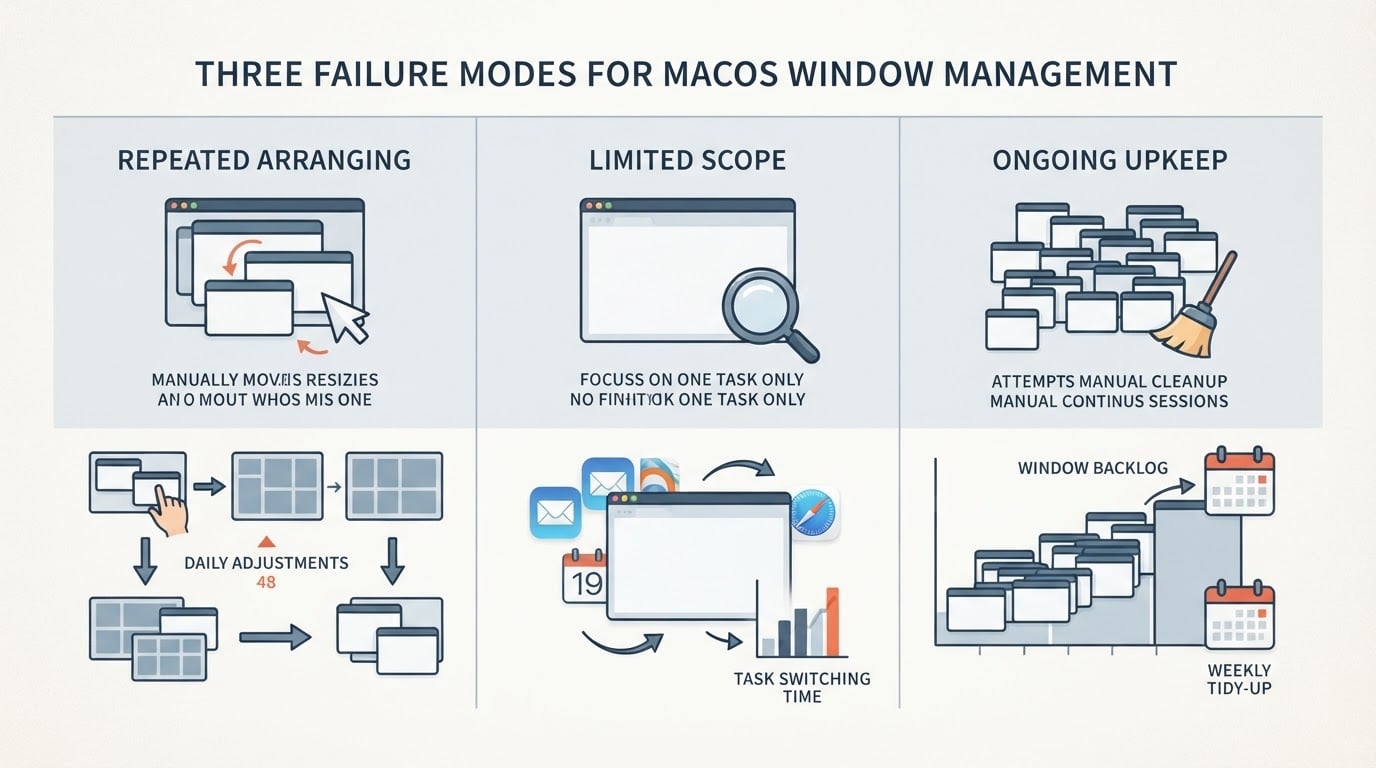
Built-in tools break down on repetition. The commands work, but the system forgets your arrangement, so the same setup work returns every morning and after every display change.
Snapping utilities break down on ambition. They place windows well and stop there. If your real problem is that windows pile up faster than you can arrange them, a manual tool makes the arranging faster without reducing how much of it you do.
Tiling managers break down on maintenance. The layout is as stable as the configuration behind it, and a configuration that nobody updates after a system release is a layout that stops behaving. The tools that reach deepest into the system also ask for the most access, which is a fair trade only when you actually want the result.
None of the three breaks down for everyone. The honest question is which failure mode you would rather live with: repeated arranging, limited scope, or ongoing upkeep.
If you switch directions later
Switching is cheaper when you keep the habits separate from the tool. Start with the built-in set for a week and note the moments where you lose time. If the losses cluster around placing windows, a snapping utility is the natural next step. If they cluster around rebuilding the same arrangement, look at tools that treat layouts as rules.
When you move on, keep the old path available for a few days and unbind the shortcuts you no longer use. Two tools competing for the same key combination is the most common reason a new setup feels unreliable in its first week.
Decide from habits rather than feature lists
The built-in macOS tools cover placement, switching, and overview without adding anything to your machine. A snapping utility buys speed on the one job you do most often. A tiling manager buys a screen that holds its shape, and charges for it in configuration and upkeep. Pick the direction whose cost you are willing to pay every week, then let the details of the tool follow from that.